How to Fix Broken Lines in Text Copied From PDFs
Fix broken lines in text copied from PDFs with practical tips for removing unwanted line breaks while preserving paragraphs, lists, and readable formatting.
- Why a Clean PDF Can Produce Messy Text
- Spot the Difference Between a Broken Line and a New Paragraph
- What Broken PDF Text Looks Like Before and After
- A Practical Workflow for Repairing Extracted Text
- When You Should Keep the Original Line Breaks
- Make Extracted Text Ready for Its Next Use
Copy a few paragraphs from a PDF, paste them into your document, and suddenly your text looks like a staircase. Every line ends too early. Sentences are chopped into awkward fragments. Paragraphs that looked perfectly normal in the original file now resemble a collection of unrelated lines.
Sound familiar? This is one of the most frustrating parts of working with PDF content. You might only need a few paragraphs for a report, research document, blog post, or presentation, yet cleaning up the copied text can take longer than expected.
The problem often comes from the way PDFs preserve page layouts rather than ordinary flowing text. When content is extracted, visual line endings may become actual line breaks. The good news is that you usually don't need to rebuild the document from scratch. You just need to identify which breaks are unnecessary and remove them without damaging the structure of the original content.
Why a Clean PDF Can Produce Messy Text
A PDF is designed to preserve how a document looks on the page. Text positioning, columns, spacing, and page boundaries help maintain the original layout across devices. However, that visual structure doesn't always translate neatly when you copy the text into another application.
For example, a paragraph might appear as five normal lines in a PDF. After copying, each visual line may become a separate line in a text editor. The words are still there, but the structure is no longer suitable for ordinary reading or editing.
Multi-column layouts can make things even trickier. Text may be extracted in an unexpected order, while headers, footers, page numbers, and footnotes can end up mixed into the main content. Scanned PDFs introduce another challenge because their text may depend on optical character recognition, or OCR, which can produce recognition errors alongside formatting problems.
Understanding the source of the mess matters. Removing line breaks can repair text that has been split unnecessarily, but it won't automatically fix incorrectly recognized characters, scrambled columns, or missing words.
Spot the Difference Between a Broken Line and a New Paragraph
Before fixing anything, take a closer look at the text. Not every line break is a mistake, and deleting the wrong ones can turn readable content into an unreadable wall of text.
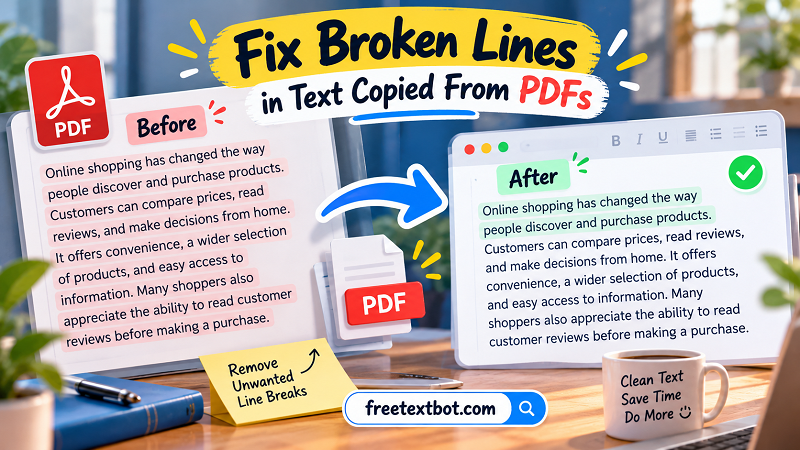
Consider this example of text copied from a PDF:
Before
Online shopping has changed the way
people discover and purchase products.
Customers can compare prices, read
reviews, and make decisions from home.
If these are merely visual line endings from the original page, the text should read:
After
Online shopping has changed the way people discover and purchase products. Customers can compare prices, read reviews, and make decisions from home.
Here, joining the lines restores the natural flow of the sentence. But imagine the same document contains a heading followed by a paragraph, or a numbered list with separate items. Those structural breaks should usually remain.
A useful rule is to examine the meaning and layout together. If two lines belong to the same sentence or paragraph, their separation may be unnecessary. If a line marks a new heading, list item, address, or paragraph, preserve it unless you have a specific reason to change it.
What Broken PDF Text Looks Like Before and After
The easiest way to recognize unwanted line breaks is to look for a repeated pattern. If every line ends abruptly at a similar length, even when sentences continue naturally, the text may have retained the PDF's original line wrapping.
For example, a product description might be extracted like this:
Before
This lightweight backpack is designed for
everyday travel and outdoor adventures.
Its multiple compartments help keep
your essentials organized on the go.
After removing unnecessary breaks, it becomes:
After
This lightweight backpack is designed for everyday travel and outdoor adventures. Its multiple compartments help keep your essentials organized on the go.
The revised version is easier to edit, search, quote, and reuse. It also avoids the awkward appearance of a paragraph that has been split into multiple fragments.
However, always check the surrounding content. If a new paragraph begins after the sentence, preserve that separation. Likewise, don't automatically join lines that belong to a table, list, poem, or address. The goal isn't to eliminate every line break; it's to restore the intended reading structure.
A Practical Workflow for Repairing Extracted Text
You don't need an elaborate editing setup to clean up a few copied paragraphs. A simple workflow can save time while keeping the original meaning intact.
Start by checking the extracted text. Paste the copied content into a text editor or document where you can inspect the line endings. Look for sentences that have been split across multiple lines, repeated page headers, stray page numbers, and other artifacts introduced during extraction.
Identify the breaks that interrupt normal sentences. If the text is a continuous paragraph with no intentional structural divisions, its visual line endings are often safe to remove. If the content includes headings, lists, or multiple paragraphs, identify those boundaries before making changes.
Use a text tool to handle repetitive cleanup. For large blocks of prose, a dedicated removing line breaks tool can help join text that has been split into unwanted lines. This can be much faster than manually deleting each break, especially when working with lengthy reports or copied reference material.
Review the result before using it. Check punctuation, spaces between words, paragraph boundaries, and sentence flow. Pay particular attention to hyphenated words at the ends of PDF lines. For instance, a word split across a line because of the original page layout may need to be rejoined correctly rather than left with an unnecessary hyphen.
For complicated documents, process a small section first. Once you're confident that the result preserves the structure you need, continue with the remaining content.
When You Should Keep the Original Line Breaks
Removing unnecessary breaks is useful, but applying the same transformation to every kind of text can create new problems.
Poetry relies on line endings for rhythm and meaning. Addresses often use separate lines to distinguish recipients, streets, cities, and postal codes. Numbered lists need clear boundaries between items, while tables may rely on line structure to keep information understandable. Code and certain technical documents can also depend on exact formatting.
Even ordinary prose deserves a closer look when it contains multiple paragraphs. Joining every line without distinguishing paragraph boundaries can erase useful visual separation and make the text harder to read.
Scanned documents require extra care as well. If OCR has mistaken one character for another or placed words in the wrong order, removing line breaks won't correct those errors. You may need to improve the text extraction or compare the result with the original PDF.
The safest approach is selective cleanup: remove breaks that interfere with normal reading, preserve those that carry structural meaning, and verify the finished text.
Make Extracted Text Ready for Its Next Use
Once the unnecessary line breaks are gone, read through the content as if you were seeing it for the first time. Check whether sentences connect naturally, paragraphs remain distinct, and lists or headings still make sense. Correct any broken words, extra spaces, missing punctuation, or extraction artifacts that survived the cleanup.
If you're preparing content for a website, you may also need to apply the formatting expected by your content management system. Plain text that reads well in an editor may still require headings, lists, links, or paragraph styling before publication. For research and reports, make sure citations and references remain attached to the correct passages.
Working with PDF text doesn't have to mean spending half your day repairing every copied paragraph. Once you understand why broken lines appear, you can recognize the problem quickly, choose an appropriate cleanup method, and preserve the formatting that matters. The result is cleaner text that's ready for editing, analysis, or publication—with far less tedious manual work.